Take and file job photos
Photos file themselves to the job. Mark them up, request photos from a customer, and find them on a map.
Steps
Open the job and tap Add photo / note, or the camera on your phone. The photo lands on the job.
Tap a photo to draw on it, add a label or a caption.
Keep shooting. Each photo shows at once with a small uploading mark and goes up in the background, even with no signal. The count at the top says how many are still going up. Tap a photo marked ! to try it again.
Need photos from the customer? On the lead tap Request photos. They upload from a link, no app needed.
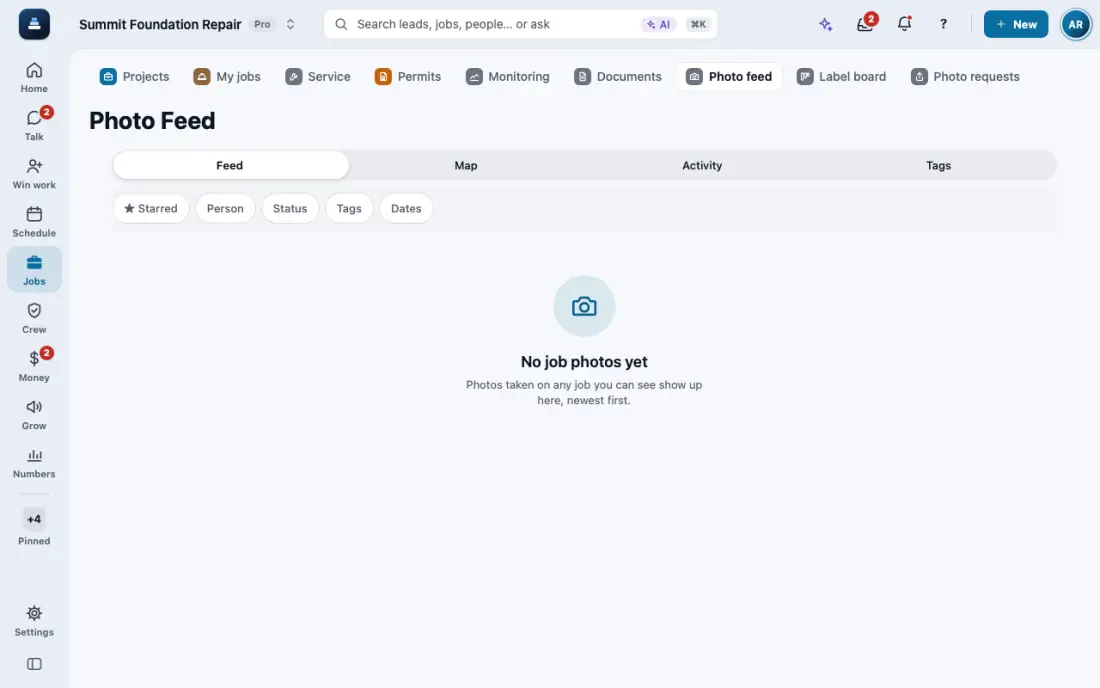
Photo feed shows every job's photos, with a map. Photo AI can suggest captions and tags when an owner turns it on; a person confirms each one.
In the app, open Help & guides and tap Show me: FollowStack points at each button as you go.
Related guides
- Run a guided inspection
- Send the inspection report
- Do a TREC home inspection
- Do a Texas wood destroying insect report
- Draw a house plan in Field CAD
- Turn a plan picture into a drawing
- Place piers around the house
- Scan the whole house with LiDAR
- Start a drawing from the address
- Show the drawing in 3D and share it
- Elevation readings and the heat map
- A reference point for each area of the house
- Add stairs and porch steps
- Measure a roof and send the roof report
- Turn an area into materials with kits
- Record the products you apply
- Keep each home equipment and its service history
- Plan drainage and grading
- Fill the elevation survey by voice
- Track cracks over time
- The yearly follow-up visit