The field crew's day on the phone
Today's jobs, directions, On my way, the checklist, photos, the daily log and Mark done.
Steps
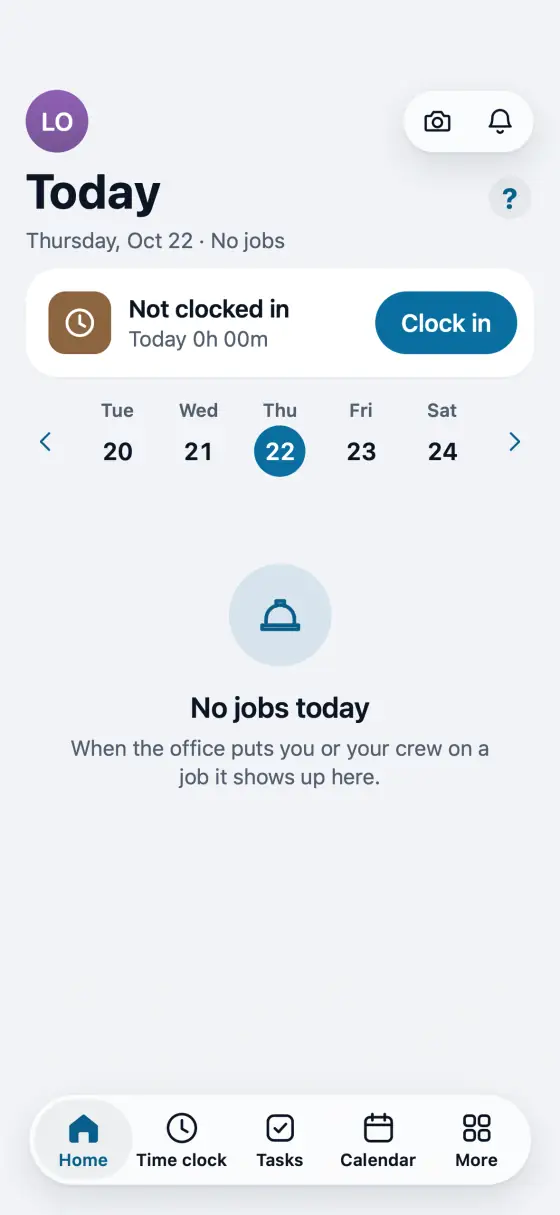
Open the app to your work. Crew members land on their own jobs for today. They refresh by themselves whenever you open the app.
Tap Navigate for directions. Tap On my way: the text to the customer is already written. Press Send and it goes from the company number.
Running behind? In that same text, tap On my way for "about 12 minutes out", or under Running late tap a time like "There at 10:15" or "There at 10:25". The times come from where you are and how far the visit is, so you only tap one and Send, even while driving. The words are in the customer's language and you can still change them. Home shows Next up with these buttons on a phone, an iPad and a computer when a visit starts within 2 hours. Or ask the AI: "tell my 2 o'clock I'm running late, there at 2:20". The text waits for your OK.
Tick each checklist step as you finish it. Some steps need a photo before the job can be done, so take it while you are there.
Tap the camera for photos. They file to the job, so the office, the report and the warranty file see the same shots.
Before you leave, tap Log today: hours, weather, what got done, anything that held you up.
Mark done tells the office the job is finished. If you need to come back, say so instead.
In the app, open Help & guides and tap Show me: FollowStack points at each button as you go.
Related guides
- Schedule crews and dispatch
- Make a change order
- Permits, inspections and punch lists
- Track what a job costs
- Handle service calls and maintenance plans
- Track safety talks, incidents and equipment
- Give jobs to subcontractors at their rates
- Send a request to a vendor with a link
- Handle repair requests from tenants
- Set up your properties, units and portfolios
- Keep soil reports, permits and site facts on a property
- Share a job with a property manager or investor
- Send requests to your pros and approve their estimates