Run the job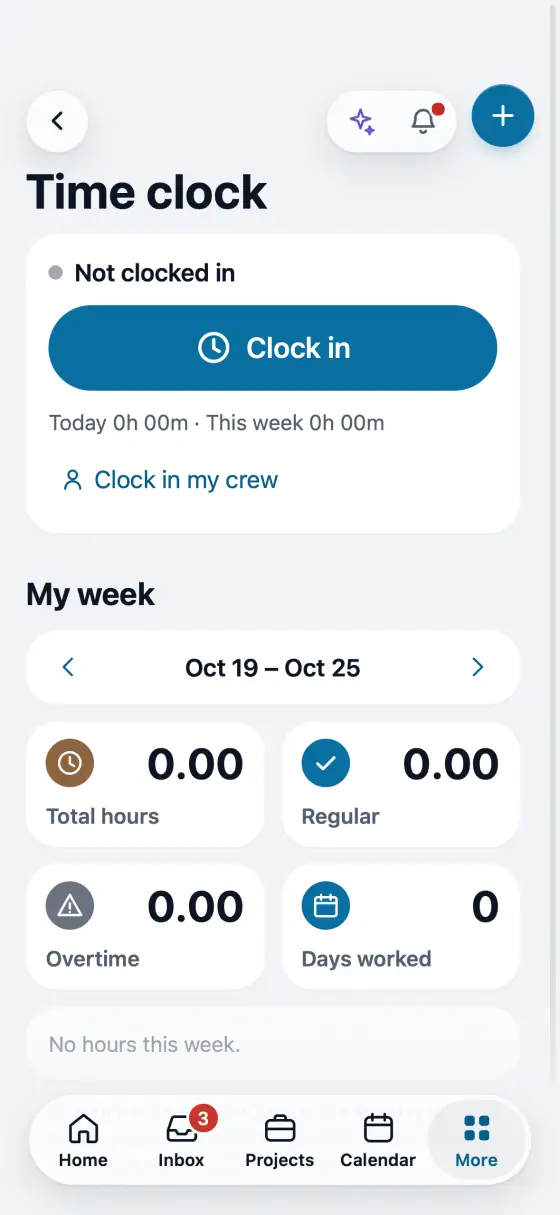
Time clock and time cards
Clock in and out on the phone, then approve the week and export it for payroll.
Steps
Open Time clock and tap Clock in. Each punch keeps one location reading. A crew lead can tap Clock in my crew.
Change jobs during the day with Switch job. Tap Clock out when you are done. No signal? It sends later.
The office opens Time cards to approve or send back each card. Over 12 hours, no clock-out or no GPS get flagged.
Tap Export CSV for payroll. Pay rates sets each person's rate for job costs.
On your phone: On the phone: More, then Time clock. Pin it so it is one tap away.
In the app, open Help & guides and tap Show me: FollowStack points at each button as you go.
Related guides
- The field crew's day on the phone
- Your phone app
- Make a change order
- Permits, inspections and punch lists
- Track what a job costs
- Handle service calls and maintenance plans
- Track safety talks, incidents and equipment
- Give jobs to subcontractors at their rates
- Send a request to a vendor with a link
- Handle repair requests from tenants
- Set up your properties, units and portfolios
- Keep soil reports, permits and site facts on a property
- Share a job with a property manager or investor
- Send requests to your pros and approve their estimates