Set up your trade and take its tour
Each trade adds its services, visit types and a starter price book, then a short tour in the order that trade works.
Steps
Open Settings, tap Get FollowStack ready, then Pick under Your trades. Already have one? The button reads Add a trade.
Search with any word (turf, plumbing, roofing) and tap your trade. It adds the services, visit types and starter price book that trade uses. Nothing you already have changes, and what two trades share is added once.
Set your prices in Price book. The starter rows have no price until you give them one.
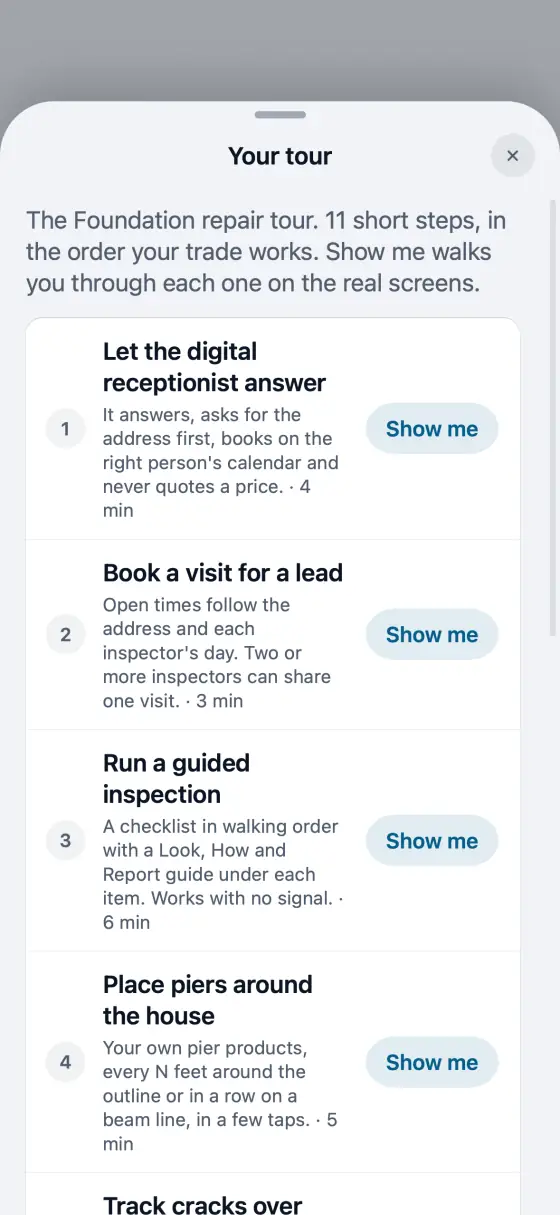
Tap the tour row, or the tour card on Home. Each step is a short guide in the order your trade works. Show me walks you through it on the real screens, and finished steps get a check mark.
Work in more than one trade? Add each one. The tour gains the steps the new trade needs.
In the app, open Help & guides and tap Show me: FollowStack points at each button as you go.