Set up how calls are answered
Answer modes, ring order, recordings, voicemail and the missed-call text.
Steps
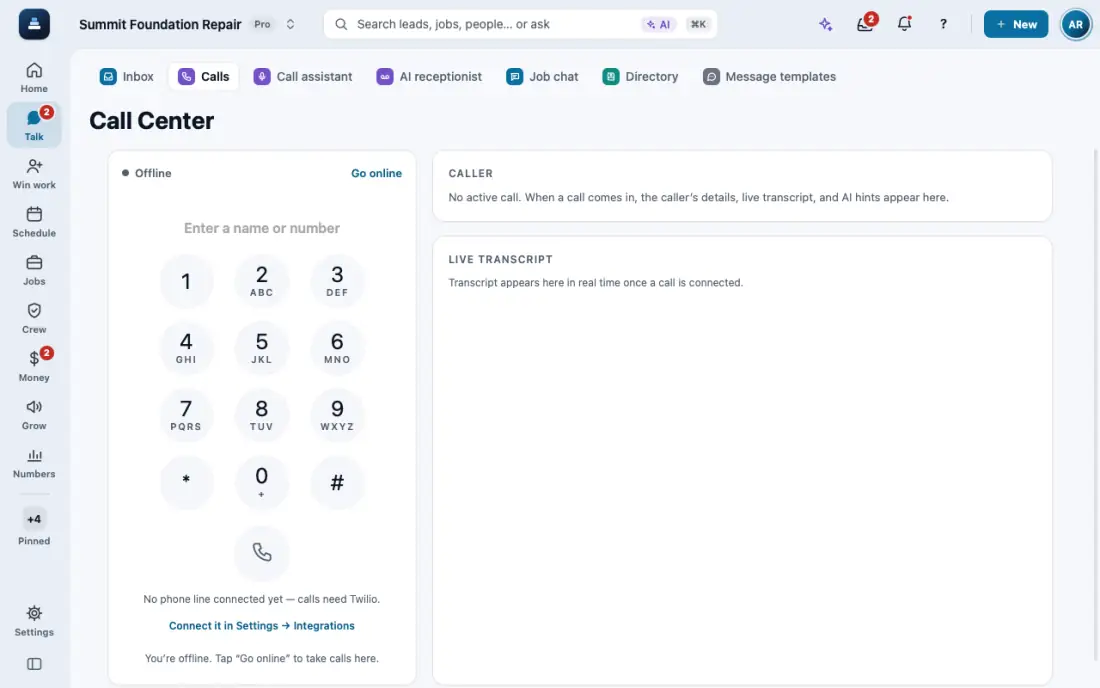
Choose the answer mode: Settings, then Connections, then Twilio. Forward to your cell, ring the app, or hand calls to the digital receptionist.
Set the ring order in Phones & booking, then Phone & calls, then Call forwarding: everyone at once, in order, or a conference room for live coaching. When nobody answers a forwarded call, FollowStack voicemail takes a message: the caller hears your greeting, then a beep, and can talk for up to 2 minutes. Record your own greeting of up to 60 seconds under Voicemail greeting, or upload an MP3, WAV or M4A like a voice memo; without one, callers hear your missed-call line in a spoken voice. The recording, its transcript and an AI summary show on the lead's thread and in the Inbox as Voicemail, and you get an alert. The missed-call text still goes out once, with its own switch, quiet hours and daily cap. When your recording notice is on, the caller first hears that the call may be recorded. A FollowStack number with no call minutes left takes no voicemail: the caller hears the goodbye. Turn it off with Let callers leave a voicemail when nobody answers in Phones & booking, then Phone & calls, or ask the AI.
In the iPhone app, calls you place or answer run on the iPhone's own calling system, like a regular phone call. Update the app if a caller can't hear you. Emergency numbers like 911 never go through FollowStack, because your company numbers have no emergency address: the app opens your phone's own dialer, and on a computer it tells you to call from your phone.
Calls are recorded, transcribed and summed up on the lead's thread. When a call rings your cell, FollowStack opens its live transcript by itself while the app is open, and again each time you come back to the app during the call. Put your cell number on your card in the Directory so the app knows the call is yours. The lock screen alert says who is calling when the number is a customer, lead, Directory contact or teammate, and when you answer you first hear who it is, like "Call from Mar Lopez, customer." Turn that off with Say who is calling when you answer in Phones & booking, then Phone & calls. Ask the AI "who is 512 555 0101?" to see who a number is, or to turn the caller announcement off. When your cell's own voicemail picks up a forwarded call, FollowStack takes the caller back: the next number in your ring order rings, or the digital receptionist answers when your answer mode uses it, or the caller gets your missed-call text and can leave a voicemail. The call shows as a missed call that went to the phone's voicemail, never as answered. Turn that off with Take the call back when my voicemail answers in Phones & booking, then Phone & calls. With Ask me to press a key to accept on, you press a key on your cell to take the call. No key pressed, and the caller is never connected to your phone: the call goes on like one nobody answered. Ask the AI to turn either one on or off.
Agree clearly on a visit time on the call (the customer says the time back, or says "that works") and it books itself when you hang up. Nothing goes to the customer until you tap Send confirmation on the alert, the call or the visit; Undo there takes it back. A task and reminders (2 hours, then the owner and managers) keep it from being forgotten. If the time was not clear, or the call rang several phones at once, the call shows Book with that time.
Add extensions in Phones & booking, then Phone & calls, then Call extensions. Pick a team member to ring their app, or type a phone number. Callers press star, then the extension, while they wait.
On a call, tap Merge to ring someone into it, or Transfer to hand the customer over and hang up. Tap a teammate's name to ring their app, or type a number or extension. Talk to them first keeps the customer on hold while you explain, then Complete transfer. Works on calls you place and calls you answer.
Check missed-call text-back in Automations. It is on for new companies.
In the app, open Help & guides and tap Show me: FollowStack points at each button as you go.
Related guides
- Move leads from new to won
- Mark spam and leads not worth it
- Leads from outside your service area
- Give every new lead an owner
- See your leads and jobs on a map
- Mark a lead won or lost
- Change your pipeline stages
- Add a lead by hand
- Get leads from your website and lead services
- Work every conversation from one inbox
- Let the AI write a reply for you
- Choose how AI replies in the Inbox
- Offer open times and book from a text
- See every call and call back
- Put your AI team to work
- Set quiet hours and texting consent
- Share your online booking page
- Book a visit for a lead
- Connect Google Calendar or Outlook
- Work through your task list
- Send a campaign
- Track commercial bids and accounts
- Make email templates with fields and a Spanish version