Choose how AI replies in the Inbox
Off, Suggest or Auto-reply. Drafts use your real facts and never claim a booking.
Steps
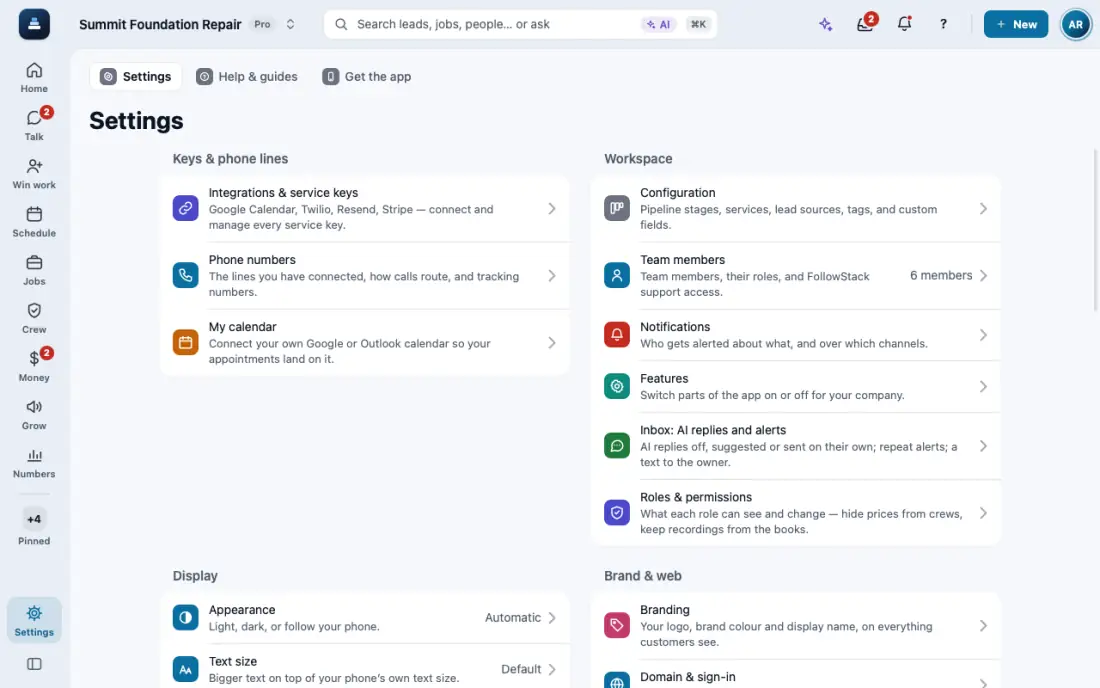
Open Settings, then Inbox: AI replies and alerts. The thread's AI reply settings opens the same sheet.
Pick Suggest (the default) to see a draft above the reply box, Auto-reply to let it send on its own, or Off.
Drafts come from your facts: company, products, knowledge base, hours, the lead and real open times. They never say a visit is booked.
The same sheet sets the repeat alerts and an optional text to the owner when a customer waits too long.
The AI booking assistant answers new website, email and Thumbtack leads. It never asks for what the lead already gave: with a full address it goes straight to open times, a street without a ZIP gets asked only for the ZIP, and a first name only for the last name.
In the app, open Help & guides and tap Show me: FollowStack points at each button as you go.
Related guides
- Move leads from new to won
- Mark spam and leads not worth it
- Leads from outside your service area
- Give every new lead an owner
- See your leads and jobs on a map
- Mark a lead won or lost
- Change your pipeline stages
- Add a lead by hand
- Get leads from your website and lead services
- Let the AI write a reply for you
- Set up how calls are answered
- See every call and call back
- Turn on missed-call text-back
- Put your AI team to work
- Add a tracking number
- Let the digital receptionist answer
- Set quiet hours and texting consent
- Share your online booking page
- Book a visit for a lead
- Connect Google Calendar or Outlook
- Work through your task list
- Send a campaign
- Track commercial bids and accounts
- Make email templates with fields and a Spanish version