Book a visit for a lead
Open times follow the address and each inspector's day. Two or more inspectors can share one visit.
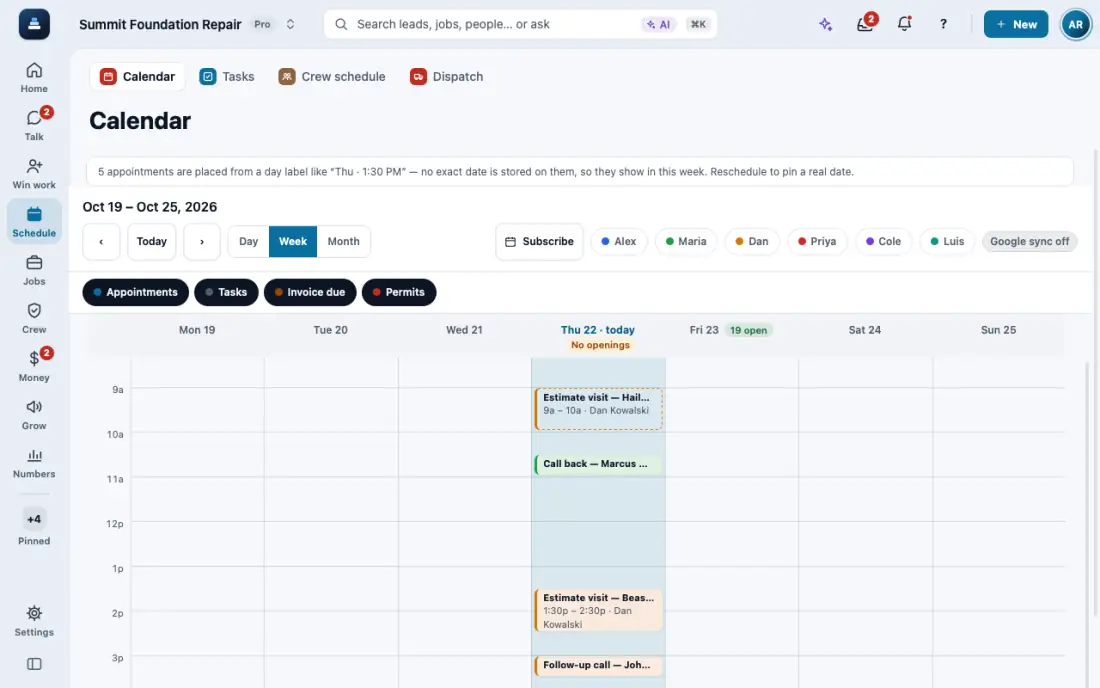
Steps
Open the lead from Leads.
Tap Book. Check the address it shows: the times are worked out from it.
Pick the visit type and a time. Only times when the inspector is free and can reach the address show up. A visit type can need 2, 3 or everyone.
Save. The customer gets the confirmation. To move it later, open the visit and tap Reschedule: it lists the times that inspector is free for the whole visit, the same way Book does (busy times on their own Google Calendar or Outlook are left out), and names any clash.
Need another time, like 6:00 PM after you close, or 10:00 when the suggestions start at 9? Owners and managers tap Pick a time (next to the days, or under the suggested times) and choose the day, any time and how long it takes. A day with no open times opens it by itself. It books even after hours or over another visit: a warning says which one, or how far the visit before it is. Reschedule has it too.
On the Calendar, tap an empty spot (or New, then New appointment), type any day and time and tap Book it. Owners and managers book it even after hours; if it overlaps a visit, you are asked first.
In the app, open Help & guides and tap Show me: FollowStack points at each button as you go.
Related guides
- Offer open times and book from a text
- Share your online booking page
- Connect Google Calendar or Outlook
- Move leads from new to won
- Mark spam and leads not worth it
- Leads from outside your service area
- Give every new lead an owner
- See your leads and jobs on a map
- Mark a lead won or lost
- Change your pipeline stages
- Add a lead by hand
- Get leads from your website and lead services
- Work every conversation from one inbox
- Let the AI write a reply for you
- Choose how AI replies in the Inbox
- Set up how calls are answered
- See every call and call back
- Turn on missed-call text-back
- Put your AI team to work
- Add a tracking number
- Let the digital receptionist answer
- Set quiet hours and texting consent
- Work through your task list
- Send a campaign
- Track commercial bids and accounts
- Make email templates with fields and a Spanish version