Export any list the way you filtered it
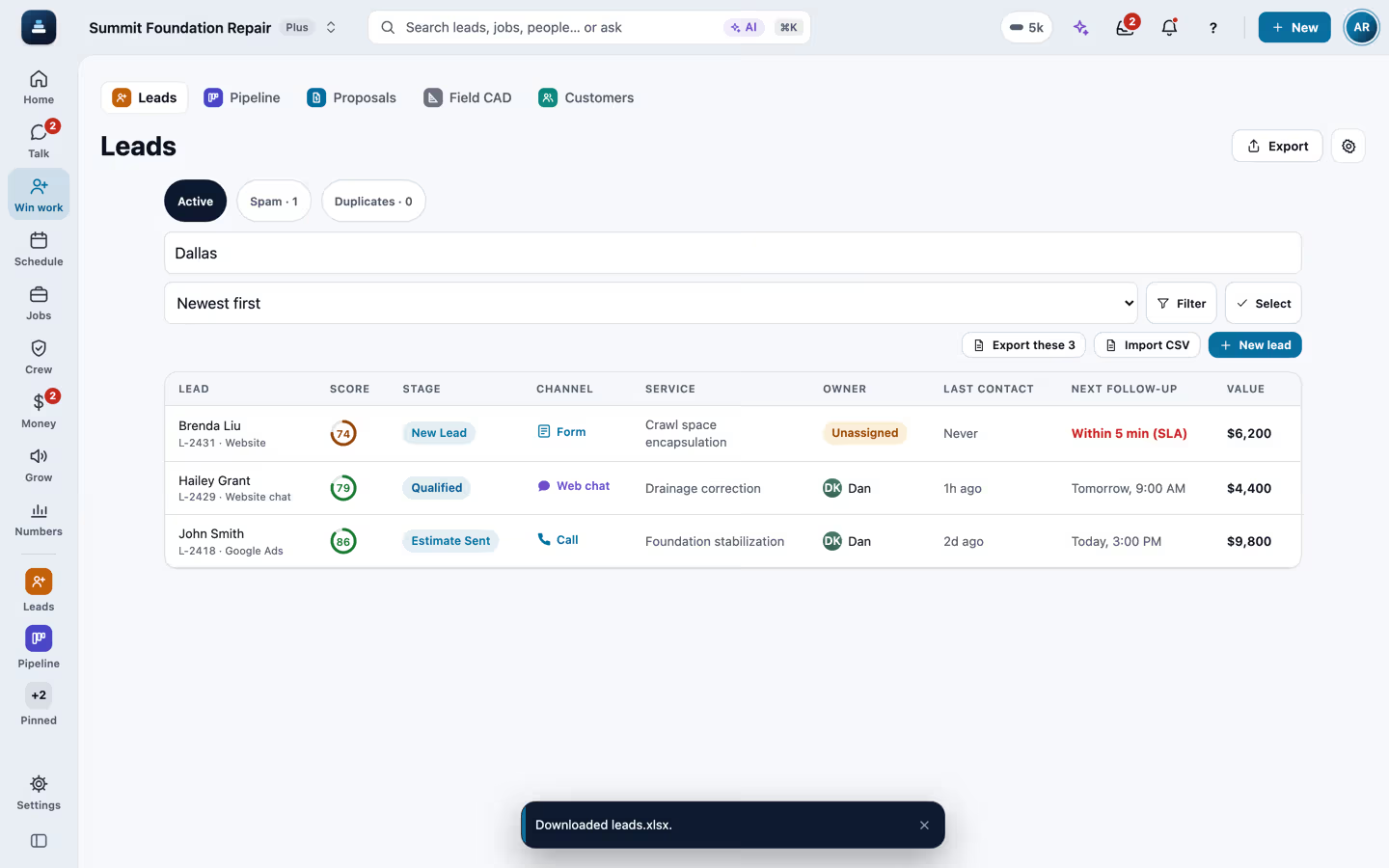
Leads, customers, projects, payments, the calendar, tasks, expenses, bills, time cards, the directory and the other lists all have an Export button. On most lists, when a search or a filter narrows what you see, Export asks whether you want the ones on screen or all of them.
Step by step
Filter the list you need
Search or filter any list the way you normally work it. The count on the Export button follows what is on screen.

Choose the ones on screen or all of them
With a search or filter on, Export asks which you want. The file carries every column your role may see.

Pick Excel, Word, PDF or CSV
Excel keeps real numbers and dates, so sums and filters work. The PDF carries your company name and page numbers. In the Directory, Export offers the vendors, subs and partners a search leaves on screen. On a phone, Export is in the menu at the top of the list.

Download all your company data
The owner can download one file of every record from Plan and billing, as JSON or as a ZIP of spreadsheets. Keys and passwords are left out.
Recorded in FollowStack with demo data. Names, addresses and numbers are made up.
The guides for it
Each guide in the FollowStack manual is a few short steps with a screenshot.
- Run reports and send them to your team and your CPASales, purchases, what customers and vendors owe, profit and loss, taxes and hours, as Excel, Word, PDF or CSV, by email now or on a schedule.4 min
- Download all your company dataOne file of every record, with secrets stripped. Owners only.2 min
- Bring your customers and prices overImport a CSV from your old system: customers, projects, open invoices and your price book.6 min
- Send your books to QuickBooksCSV exports of invoices, customers, payments and bills, ready to import.3 min
The features that do it
Keep going
Owners and managers
Home, the money, who is selling, which sources send junk, and an assistant that asks before it changes anything.
See the stepsThe office team
One inbox, formatted emails and templates, the calendar, invoices and tasks that close themselves.
See the stepsJob costing and reports for your CPA
What each job costs and earns, and the reports your accountant asks for, sent every month.
See the steps
See FollowStack on one of your own jobs
Bring an address you're bidding this week. We'll draw it and price it with you, live on the call.