How real estate investors follow the work on their properties
When the contractors you hire use FollowStack, connect with them once and they can share each job with you. You see the progress and the photos as the work happens, send new work as a request and approve estimates from your phone. Your own properties live there too, with their details, units and portfolios. When a tenant's repair costs more than your approval limit, it waits for your OK, which takes one tap from a text or an email.
Step by step
Connect with a code
One of you opens Connected companies and taps Get a connection code, and the other types it and taps Connect. A code works once, for 7 days. Either company can end the connection, and every job shared between you stops showing right away.

Watch each shared job
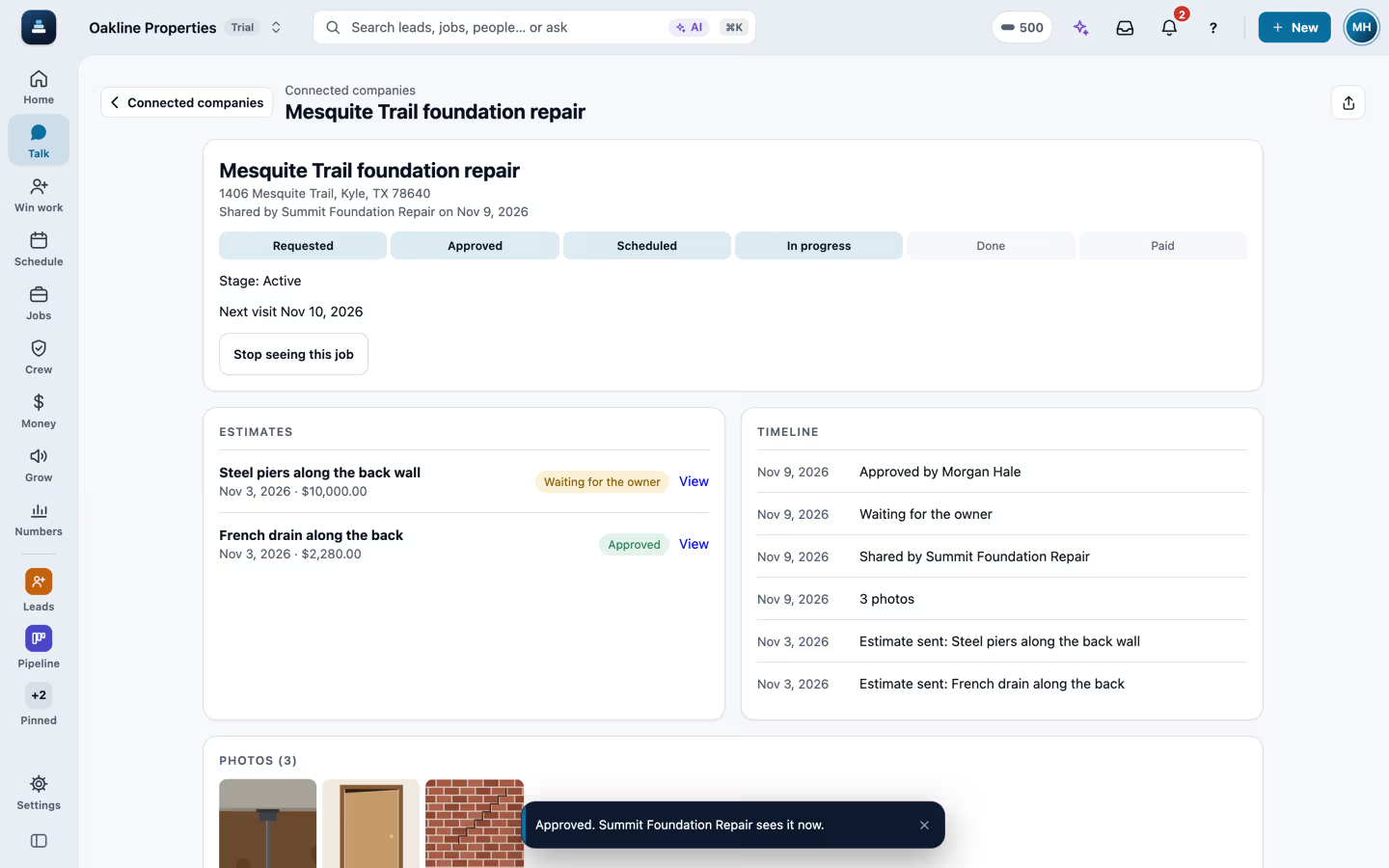
A shared job shows its stage, the six steps from requested to paid, the photos the contractor marked for the customer and the estimates and invoices they sent. It updates as they work. Nothing is copied into your account, and you never see their costs or notes.

Send work as a request
Open a property and tap Send a request, or send it from Connected companies. It lands in the contractor's FollowStack as a new lead. They see your on-site contact and access notes only while the request is open, and those never go into their records.

Approve estimates
Tap Approve on a sent estimate and the contractor sees the approval on their job right away. Set an owner approval limit, and above it the owner you linked to the property gets a text or email to approve or decline with one tap.

Approve tenant repairs from a link
When a tenant's repair on your property costs more than your approval limit, the property manager taps Ask the owner and you get a text and an email. The link opens a page with the repair, the unit, the amount and the tenant's photos, and Approve takes one tap. You don't need an account. An emergency the office confirmed goes ahead without waiting.

Keep your properties in portfolios
Bring in your houses and buildings from a spreadsheet, or add them one by one. Each keeps its type, status, year built, size, parcel, insurance with the date it ends, and notes, and each unit its beds, baths, rent and status. Group them into portfolios by owner or LLC, and a portfolio's page adds up its properties, units and vacant units.

Recorded in FollowStack with demo data. Names, addresses and numbers are made up.
The guides for it
Each guide in the FollowStack manual is a few short steps with a screenshot.
- Share a job with a property manager or investorConnect with a company you work with, then share a job. They see its progress, the customer photos and sent estimates live, never your costs or notes.3 min
- Send requests to your pros and approve their estimatesFor property managers, investors and realtors. A request lands in the pro’s FollowStack as a new lead. Over your limit, the owner approves by text first.3 min
- Set up your properties, units and portfoliosBring in your buildings and units from a spreadsheet, keep each property's details and insurance, and group properties into portfolios.4 min
- Bring your customers and prices overImport a CSV from your old system: customers, projects, open invoices and your price book.6 min
- Handle repair requests from tenantsTenants report a problem with photos from their portal. Possible emergencies are flagged for the office to confirm, repairs over the owner's limit wait for the owner's OK, and the crew sees the unit's lockbox code on the day of the visit.4 min
Keep going
Property managers
Buildings and units from a spreadsheet, tenant repair requests, vendors by link, owner approvals and live jobs from contractors.
See the stepsReal estate agents
A LiDAR floor plan, 360 tours, listing-prep notes and showings booked for you.
See the stepsThe customer portal and payments
A portal for each customer, signatures on the phone, deposits and invoices.
See the steps
See FollowStack on one of your own jobs
Bring an address you're bidding this week. We'll draw it and price it with you, live on the call.