See what your customers read and what held them
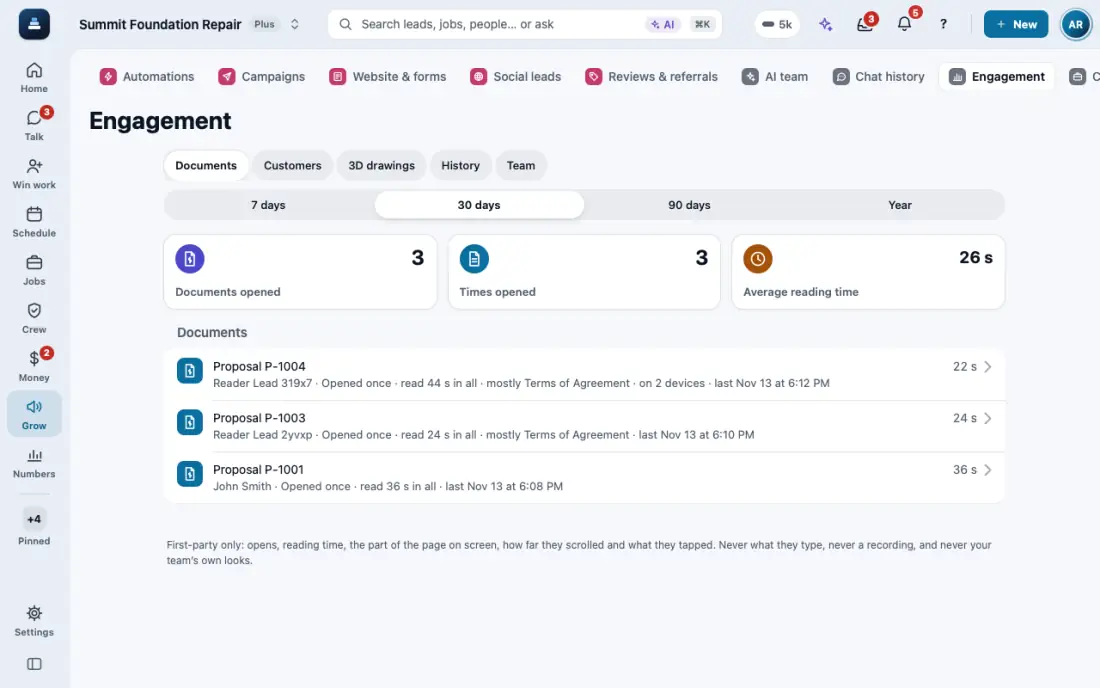
The Engagement screen: every document a customer opened, how long they read it, the part they read longest, how far they scrolled, what they tapped, and the history of every open and visit. Also how your team uses the app.
Steps
Open Engagement in the menu, under the numbers. Pick the period at the top.
Documents lists each proposal, invoice, report, change order, photo album, home packet, document and survey customers opened, and their portal visits: times opened, reading time, the part they read most and when. Tap one for What they read longest, What they tapped and its History.
Customers has one row a person. Tap one to see everything they opened, in order, with the device and how long each visit lasted.
3D drawings shows the 3D links customers opened and what they did there (turned the model, opened it in AR). History is every open and visit across the company.
The company owner also sees Team: each person's screens and minutes in the app over the last 30 days, from the activity log.
Or ask the AI, in FollowStack or your own Claude or ChatGPT: "which part of the proposal did Pat read most?" or "who opened their invoice this week?"
It records time on each part of the page, scroll and taps, never what they type and never a recording, and never your team's own looks. Kept 3 years. Switch it off in Settings, Features, Reading details.
In the app, open Help & guides and tap Show me: FollowStack points at each button as you go.