See how a customer engages
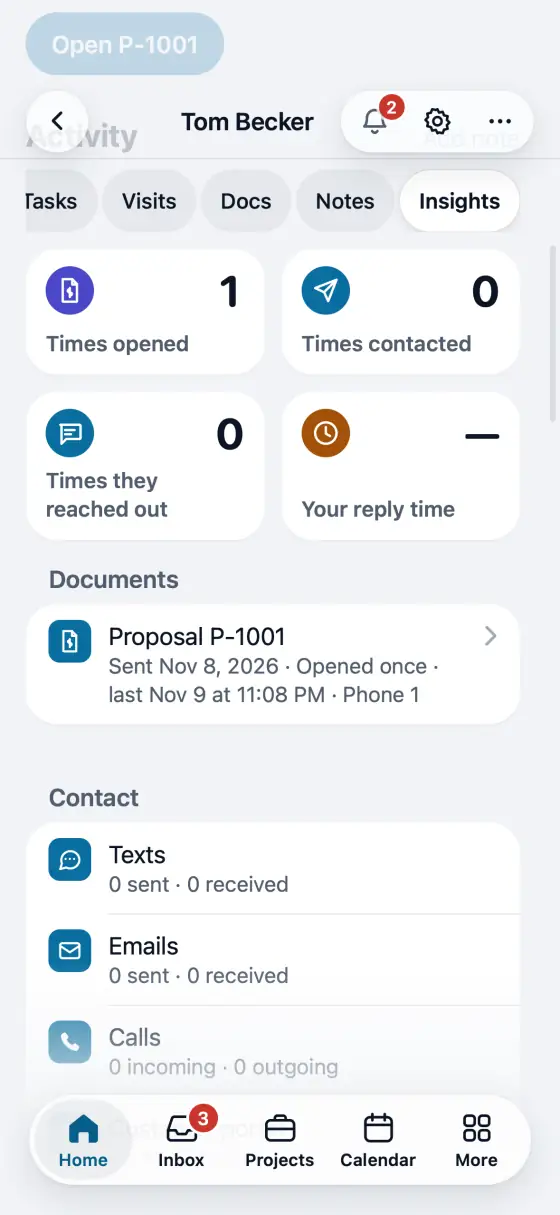
Insights on a customer or a lead: what they opened and when, every text, email and call, how fast each side answers and the best time to reach them.
Steps
Open a lead and tap Insights. On a customer, open Insights beside Overview.
Documents lists what you sent them: proposals, inspection reports (TREC and T-5 too), invoices, photo albums and the rest, with how many times each was opened, the last time and on what device.
Contact counts texts, emails and calls both ways and whether they arrived. Timing shows your first reply, how fast each side answers and the best day and hour to call.
Owners and managers also see Money: lifetime value, the balance and how fast they pay. Someone who sees only their own leads sees Insights only for those.
Opens leave out link previews and the links your team opens from FollowStack. To see what a customer sees, open it from FollowStack, not from the email or text you sent them. Each open keeps its time and the kind of device for 3 years; a coded key that tells two devices apart is deleted after 90 days, and the internet address is never kept. To stop recording opens, turn off Open tracking in Settings, Features.
In the app, open Help & guides and tap Show me: FollowStack points at each button as you go.
Related guides
- Get referrals with a link and a QR code
- Give customers a branded portal
- Give your customer their portal
- Give the homeowner a home record packet
- One sign-in for all of a customer’s portals
- See what your customers read and what held them
- See where customers tap, replay their visits and watch your numbers
- See how your customers engage and how fast your team reaches them